

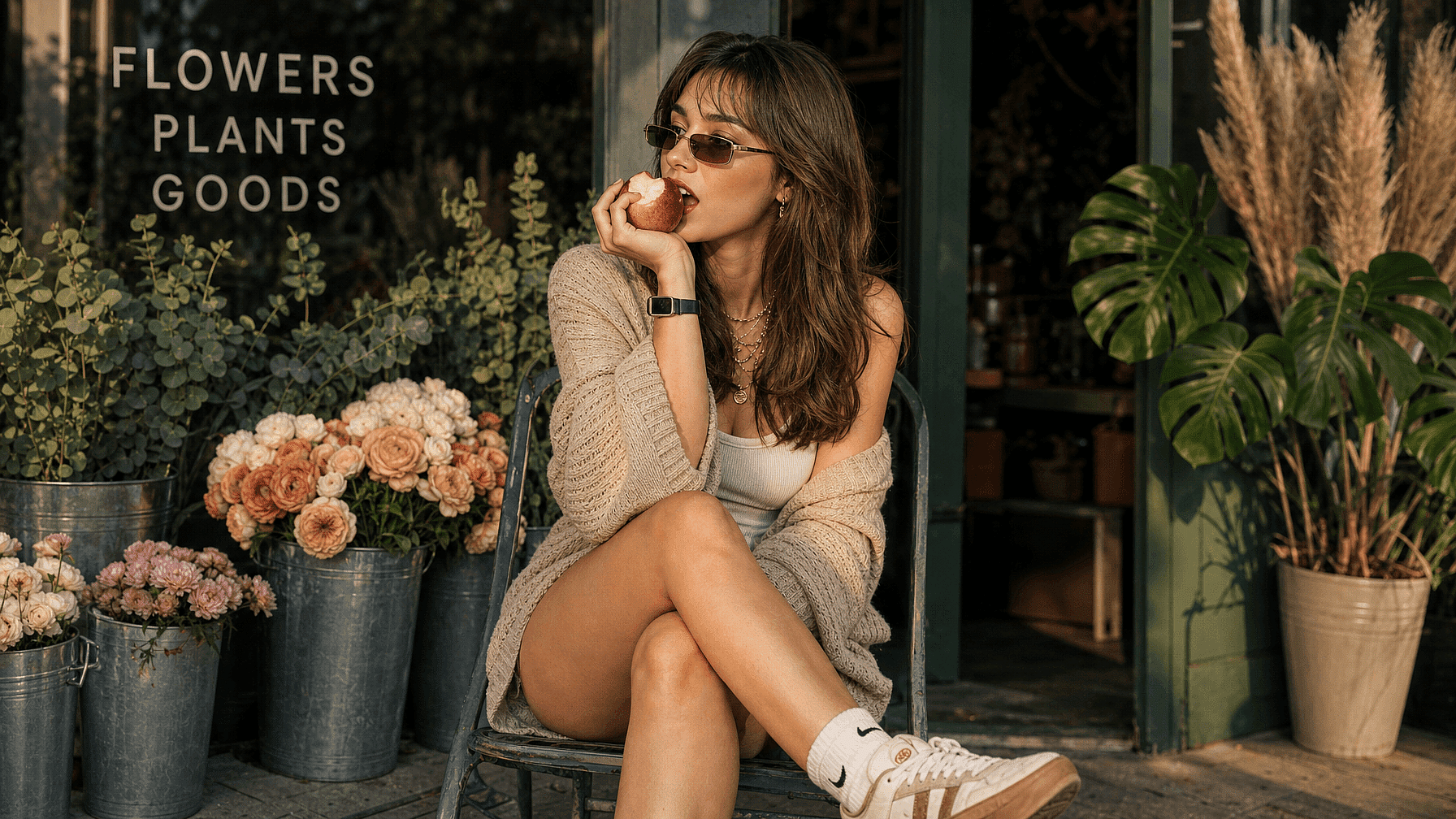
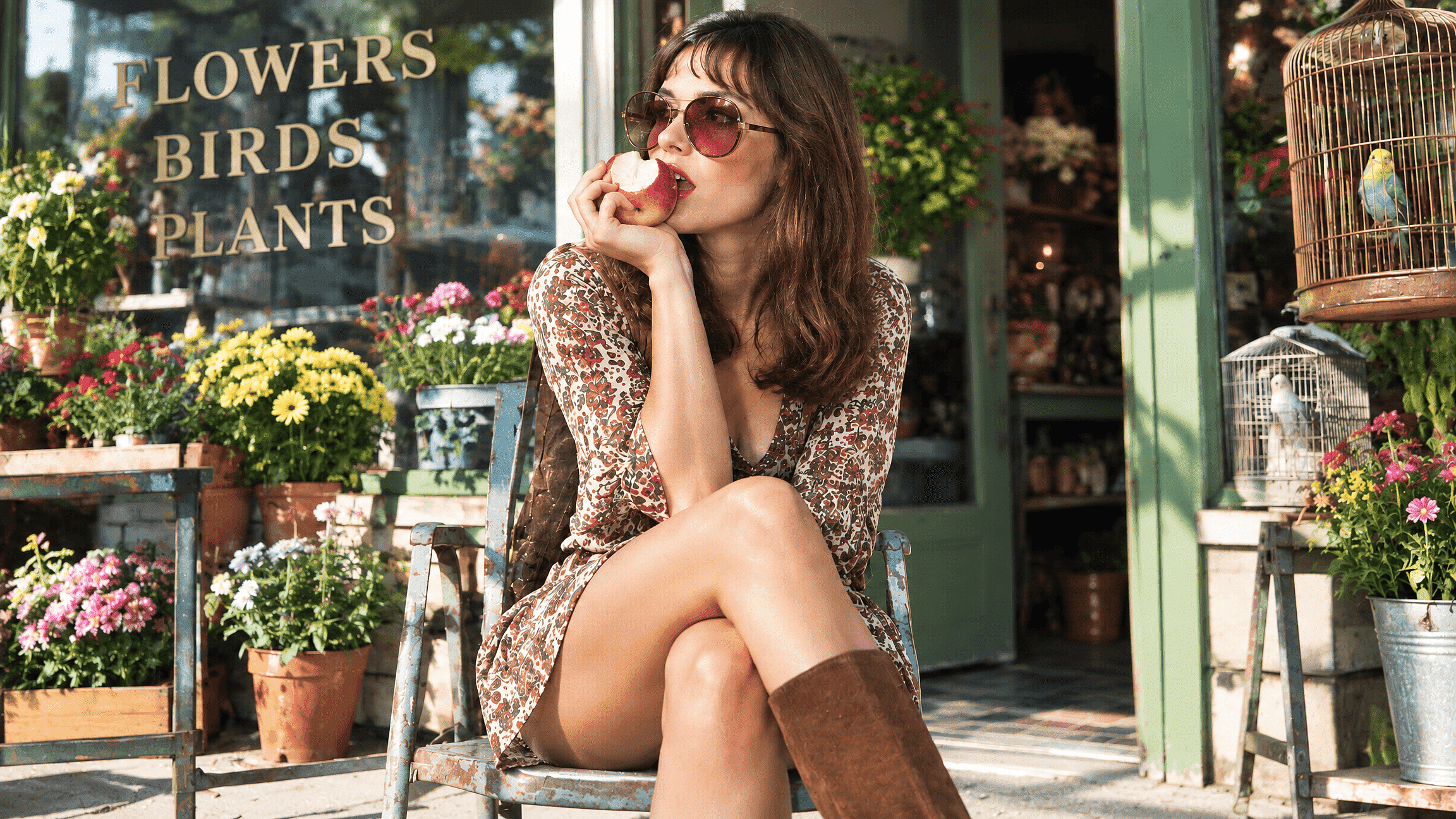
Add a 1970s Filter to Your Photos
Give your photos a sun-faded, 1970s-inspired look with warm colors, soft highlights, and fine grain. Use OpenArt’s AI Image Generator to restyle your modern photos into retro scenes.
 Add an image Or drag and drop here · JPEG, PNG, WEBP
 Why Use a 1970 Filter?
Artistic Inspiration
Explore best AI image prompts for 1970s-inspired portraits, interiors, and street scenes. Adapt the lighting, colors, and details to your own project.
Design Prototyping
Quickly create visual prototypes to test and iterate on design concepts before finalizing them.
Marketing Campaigns
Develop eye-catching visuals for social media, advertisements, and promotional materials to engage your audience.
Educational Tools
Use AI-generated art to create engaging and interactive learning materials for students.
Personal Projects
Create fictional snapshots for a character’s backstory. A patterned shirt, wood-paneled room, and casual framing can give the scene more context than a color effect alone.
A Retro Cover Image
Create a retro cover with OpenArt’s AI text-to-image generator. Describe an amber-lit listening room, a record player, or a roadside stop, and leave space for your title.
How to Create a 1970s Photo Look in OpenArt
Choose image to image for an existing photograph. Choose text to image when you want a new picture.
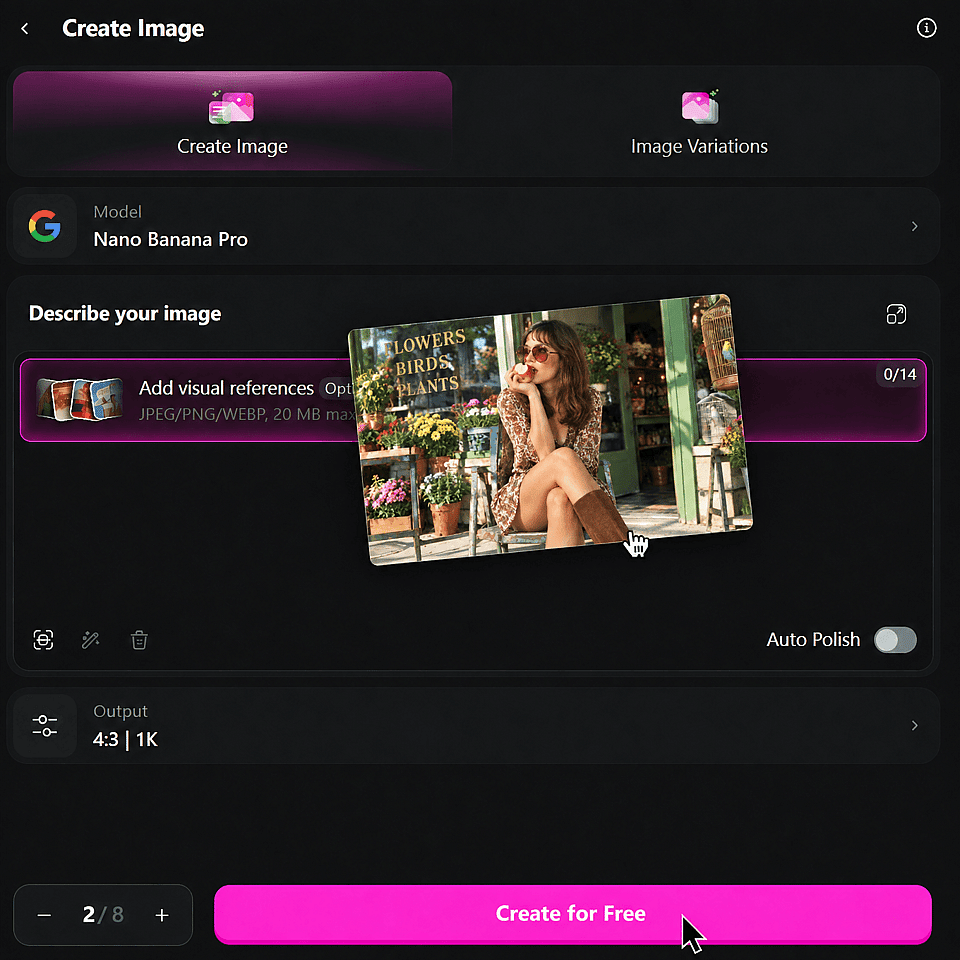
Upload Your Photo
Drag and drop your image into the designated area. This initiates the upload process.
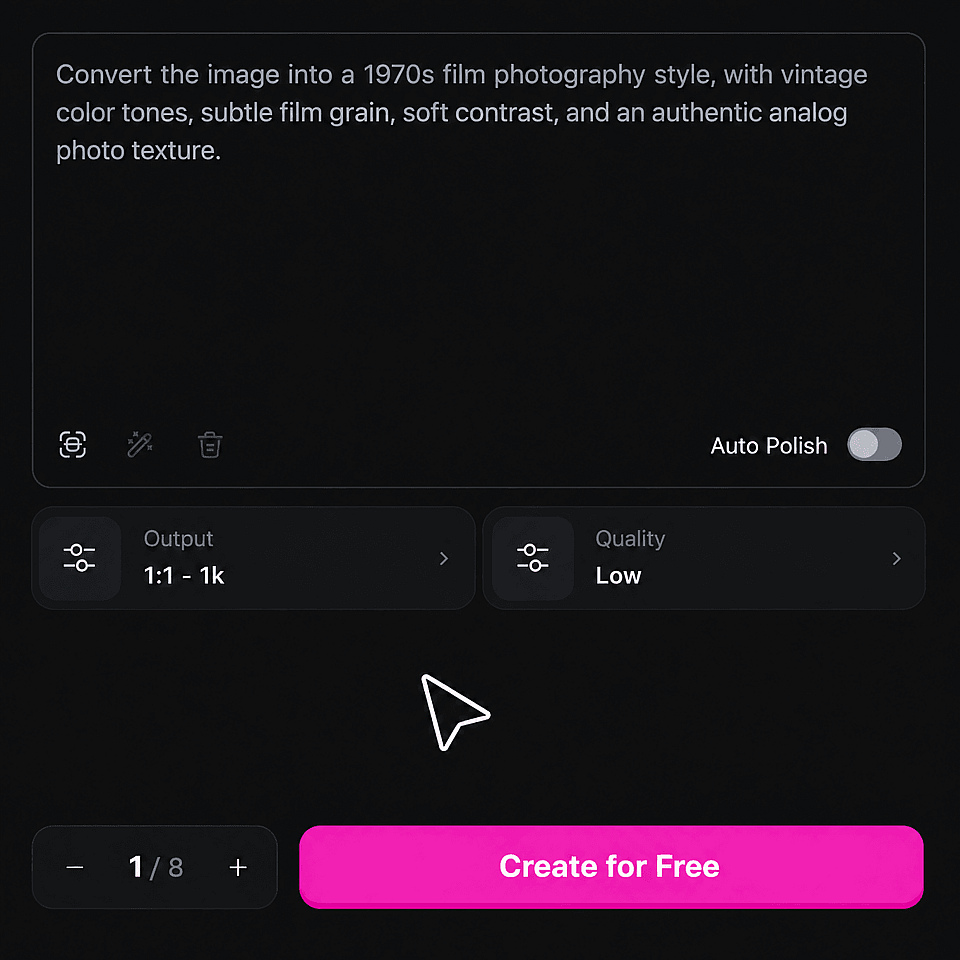
Prompt Your 1970s Style
Describe the 1980 style and adjust the creativity level to your preference. This sets the tone for your final image.
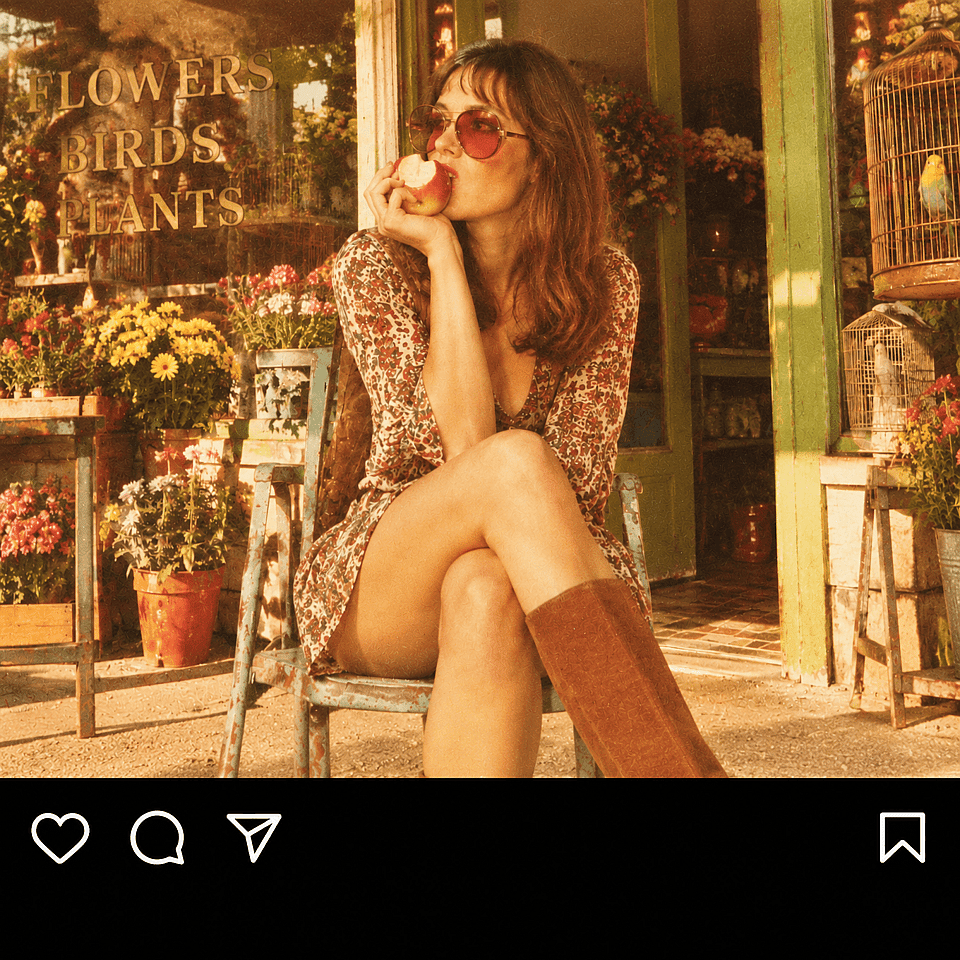
Generate Your Image
Decide on the number of generations you want. Click "Create" and wait a few seconds for your edited image to be ready.
What Can You Create with a 1970s Filter?
Perfect for any use case, our AI image generator delivers stunning results.
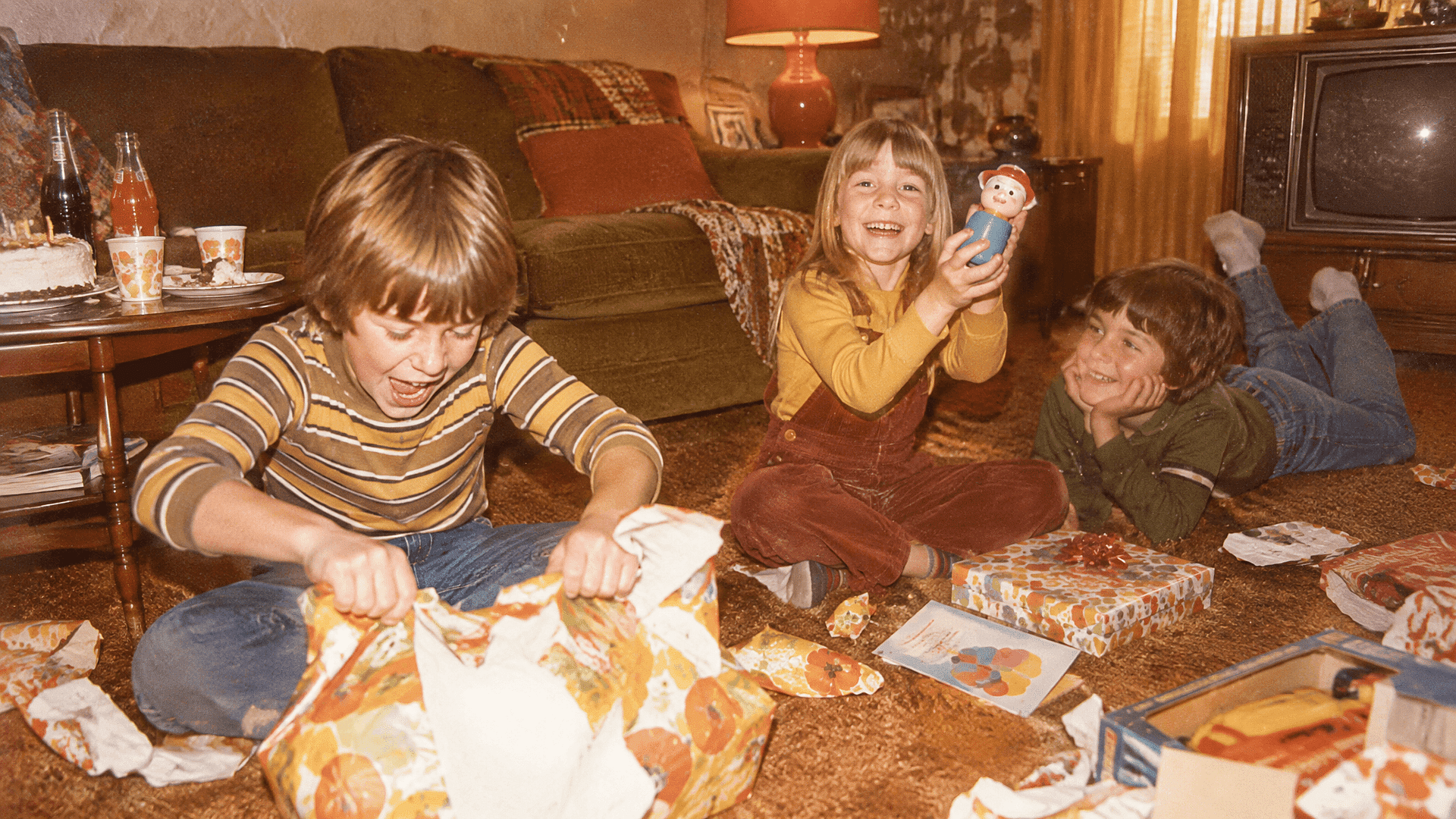
Retro Photo Restoration
Transform your modern photos into nostalgic masterpieces with our 1970s filter, perfect for restoring that vintage charm and timeless appeal.
Try it Now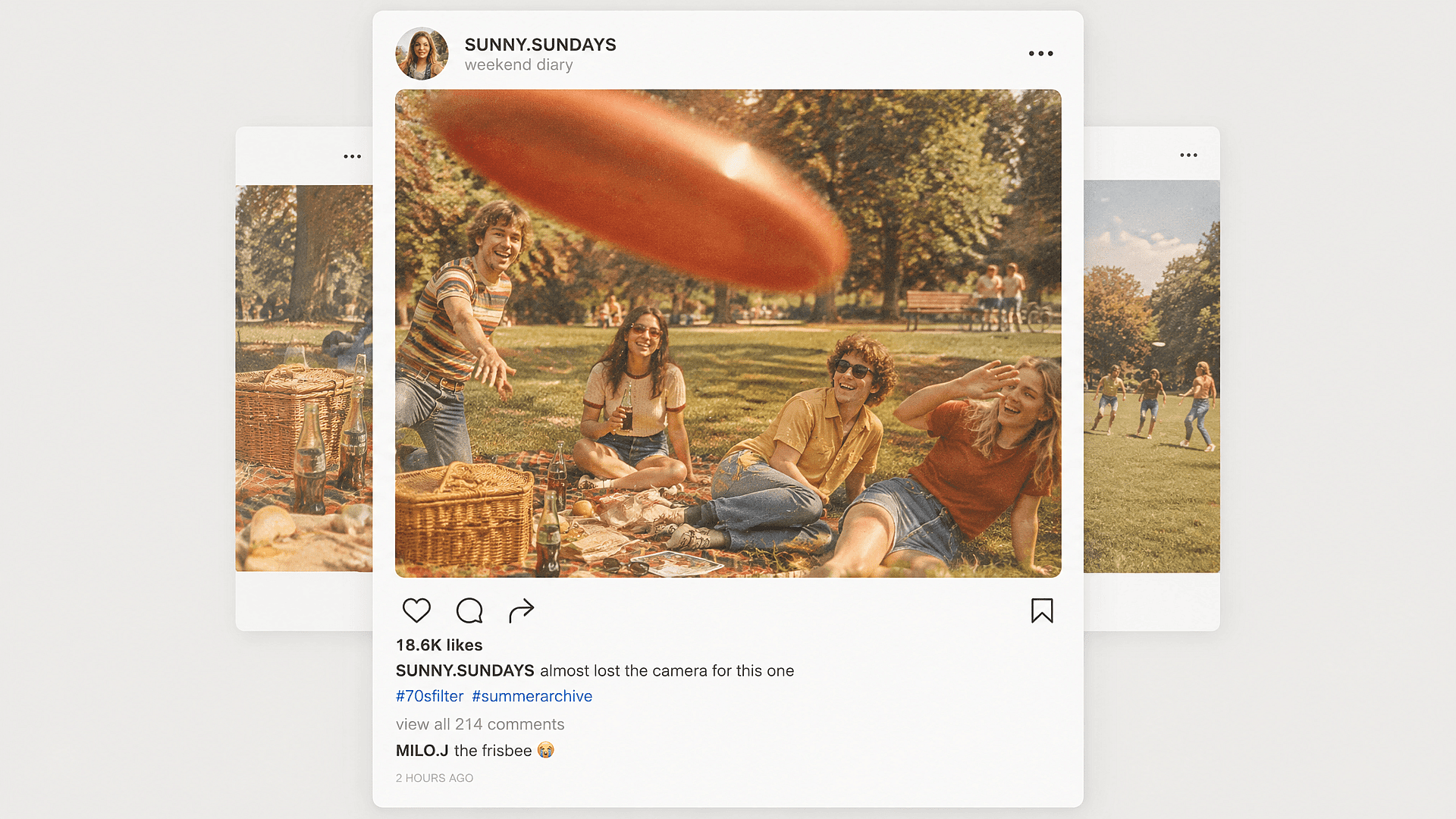
Vintage Social Media Posts
Transform your photos with a 1970s filter to create nostalgic, eye-catching social media posts that stand out in today's digital age.
Try it Now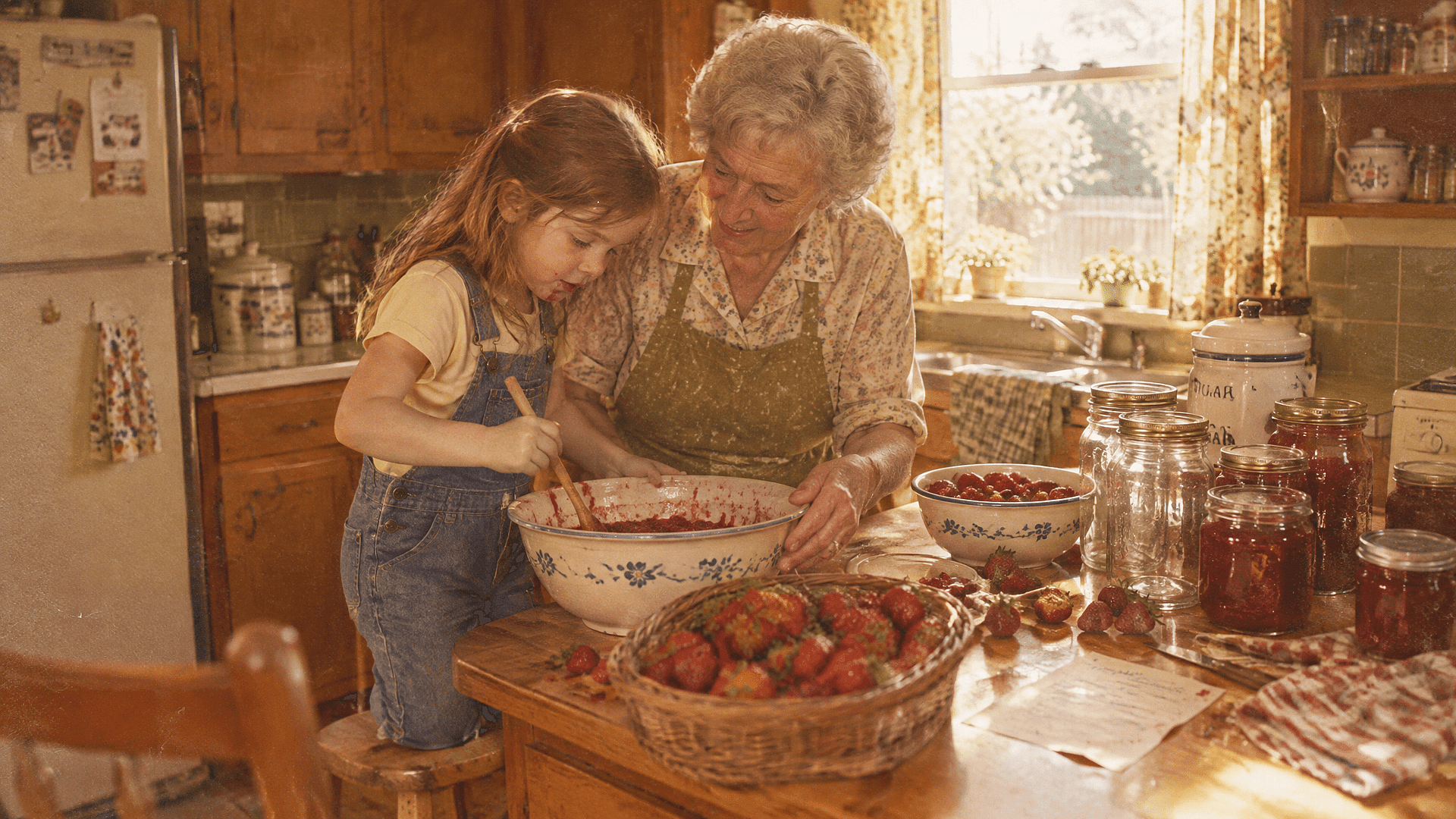
Character Backstory Photos
Create the photographs your fictional character might keep in an old album. Use text to image to imagine a childhood home, a summer road trip, or a candid family gathering.
Try it Now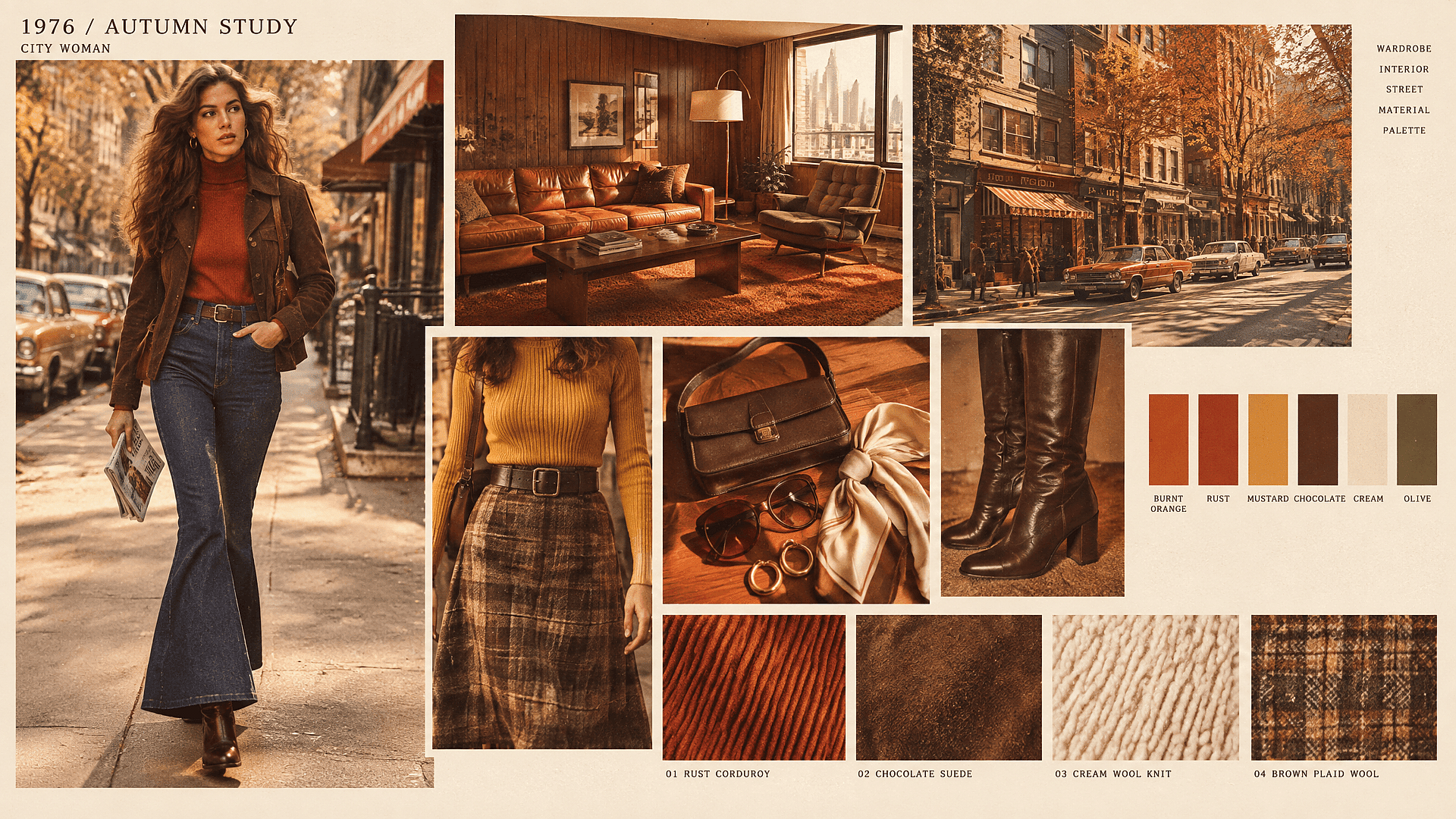
1970s Mood Boards
Explore wardrobe, interiors, and color palettes for a retro-themed project. Generate wood-paneled rooms, patterned outfits, and sunlit street scenes to define the look before production.
Try it NowFrequently Asked Questions
Get Insights from Experts Blog
Get the insights you need. Our experts share actionable hacks, break down the hottest topics, and provide essential how-to guides to help you build, optimize, and scale.
Read More
